






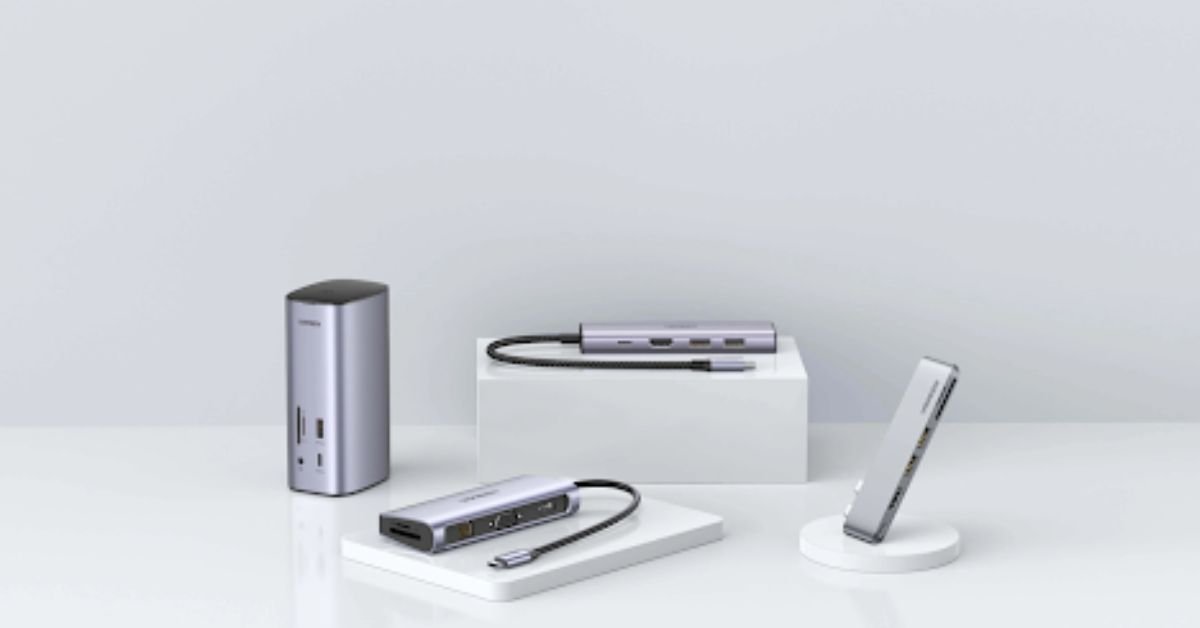
Modern laptops are becoming thinner and more portable, but this design trend often comes with a downside—fewer ports. Many users quickly discover that their laptop may only have a couple of USB-C ports, which makes it difficult to connect multiple devices at once. Whether you are working from home, studying, or managing multiple peripherals, expanding connectivity becomes essential. One of the easiest solutions is using a USB hub, while more advanced setups may benefit from a docking station.
In this article, we’ll explore how a USB hub can expand your laptop’s connectivity, how it compares with a docking station, and how to choose the best USB hub for your needs.
Why Laptop Connectivity Is Limited
Over the past few years, laptop manufacturers have prioritized slim designs and lightweight builds. As a result, many laptops now feature only a few ports. For example, some modern ultrabooks or MacBooks offer only two or three USB-C ports.
While this design improves portability, it can create challenges when you need to connect several accessories at once, such as:
- External hard drives
- Keyboards and mice
- Monitors
- SD cards
- USB flash drives
Without enough ports, users constantly have to plug and unplug devices. This is where a USB hub becomes extremely useful, allowing multiple devices to connect through a single port.
How a USB Hub Expands Laptop Connectivity
A USB hub works as a small expansion device that connects to your laptop and provides multiple additional ports. Instead of relying on a single USB port, you can instantly add several connections.
For example, a typical USB hub may include:
- Multiple USB-A ports
- USB-C ports
- HDMI output
- SD or microSD card readers
With a USB hub, you can connect a mouse, keyboard, and storage drive simultaneously while still having extra ports available. This makes it much easier to manage your devices without constantly swapping cables.
Many users consider a USB hub the simplest and most affordable way to upgrade their laptop’s connectivity. For everyday tasks such as transferring files, connecting accessories, or working with external drives, it offers a practical solution.
USB Hub vs Docking Station: What’s the Difference?
Although both devices expand connectivity, a docking station offers more advanced capabilities compared to a USB hub.
A USB hub typically focuses on basic port expansion. It allows users to connect several USB devices and sometimes provides additional features like card readers or HDMI output.
A docking station, on the other hand, is designed for more complex setups. It often includes:
- Multiple display outputs
- Ethernet connectivity
- Power delivery charging
- Audio ports
- Additional USB connections
For professionals who use multiple monitors or require a full workstation setup, a docking station can be a powerful tool. However, for most users who simply need extra ports, a USB hub is usually sufficient and more portable.
Choosing between a USB hub and a docking station largely depends on your workflow and the number of devices you plan to connect.
Benefits of Using a USB Hub
Using a USB hub can significantly improve your laptop experience. Some of the most notable advantages include convenience, flexibility, and improved productivity.
First, a USB hub reduces cable clutter by allowing multiple devices to connect through a single port. This makes your workspace cleaner and more organized.
Second, it saves time. Instead of constantly plugging and unplugging devices, everything can remain connected at the same time.
Third, a USB hub is highly portable. Many models are compact enough to fit into a laptop bag, making them ideal for students, remote workers, and travelers.
Because of these benefits, many users search for the best USB hub that offers the right balance between portability and functionality.
How to Choose the Best USB Hub
When selecting the best USB hub for your laptop, it’s important to consider several key factors.
1. Number and Type of Ports
Different USB hubs offer different port configurations. Some focus on additional USB-A ports, while others include HDMI, Ethernet, or card readers. Choose a hub that matches the devices you regularly use.
2. Compatibility
Make sure the USB hub supports your laptop’s port type, such as USB-C or Thunderbolt. Compatibility ensures stable performance and proper data transfer speeds.
3. Build Quality
A well-built USB hub will last longer and provide more reliable connections. Look for durable materials and trusted brands.
4. Additional Features
Some hubs include features such as fast data transfer, power delivery charging, or high-resolution display output. If you need more advanced connectivity, you may want to consider whether a docking station would better suit your setup.
By evaluating these factors, you can identify the best USB hub that fits your workflow and device requirements.
When to Consider a Docking Station Instead
While a USB hub works well for most users, there are situations where a docking station may be the better option.
If your work requires multiple monitors, wired internet, and charging through a single cable, a docking station provides a more complete solution. It essentially turns your laptop into a full desktop workstation.
However, docking stations are typically larger and more expensive than USB hubs. For simple connectivity expansion, many users still prefer the convenience of a USB hub.
Conclusion
As laptops continue to become thinner and more minimalistic, connectivity limitations are becoming more common. A USB hub offers an easy and efficient way to expand your laptop’s ports, allowing you to connect multiple devices without hassle.
While a docking station may be ideal for advanced workstation setups, a USB hub is often the perfect solution for everyday users who simply need more ports. By choosing the best USB hub for your laptop, you can improve productivity, simplify your workspace, and make your devices work together more efficiently.